AI Background Removal on 10 Random Products — Every Result Shown

2026/03/24

Last month I switched from outsourcing product photos to shooting everything myself. The camera part was fine. The editing part almost broke me.

I was spending 20-30 minutes per image in Photoshop — pen tool around the edges, refine mask, fix the hair-thin gaps, flatten, export. Multiply that by 40-50 SKUs and you've lost two full days just on background removal. Not editing. Not color correction. Just cutting things out.

So I started testing AI tools. And I got tired of every tool's demo page showing the same perfectly-lit sneaker on a seamless white backdrop. Of course that works. Show me what happens when I throw a lumpy bar of soap at it.

I pulled 10 products off my shelves — deliberately picked things that would be hard. No brand names visible, no logos, nothing staged. Shot them on whatever was nearby. Ran each through the same AI pipeline. Saved the output. No cleanup after.

Here's all of it.


How I Set This Up

Quick context so you know what you're looking at:

  • Each image shows the original shot on the left, AI output on the right
  • The right side has automatic centering — the tool figures out how much space the product needs based on its shape
  • I didn't adjust anything manually after the AI processed it
  • "Smart Fit" percentage = how much of the frame the product fills (wider items get less fill so they don't look cramped)

1. Sofa

Sofa — Before and After AI Background Removal

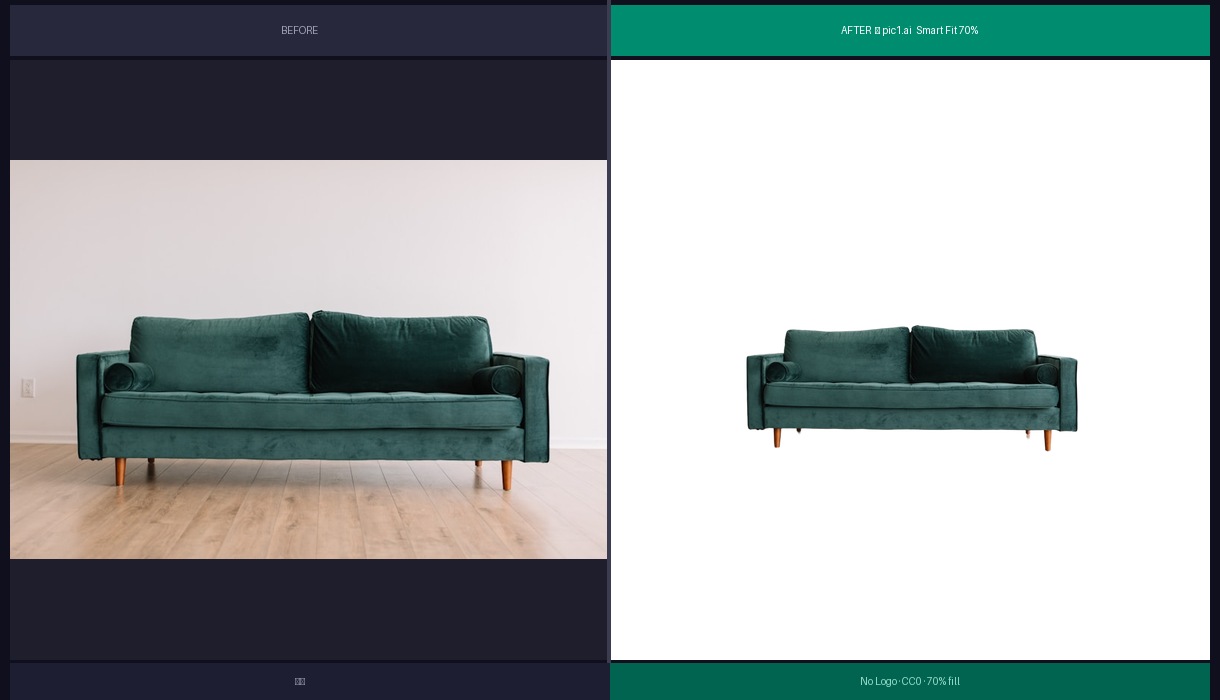
This was my "let's see if it can handle something big" test. Sofas have soft edges everywhere — the armrest curves, the cushion creases, the shadow underneath that bleeds into the floor.

The fabric texture survived, which I didn't expect. Usually AI smooths out fine grain when it's near an edge. The bottom shadow got cleanly separated too. I've had retouchers mess that up — they clip the shadow and the sofa looks like it's floating.

One thing: the back cushions have a slightly different tone in the AI output. Could be the background color was influencing the white balance in the original, and removing it shifted things. Minor, but I notice it.

Verdict: Would use this for a listing. 8/10.

2. White Ceramic Mug

White Ceramic Mug — Before and After AI Background Removal

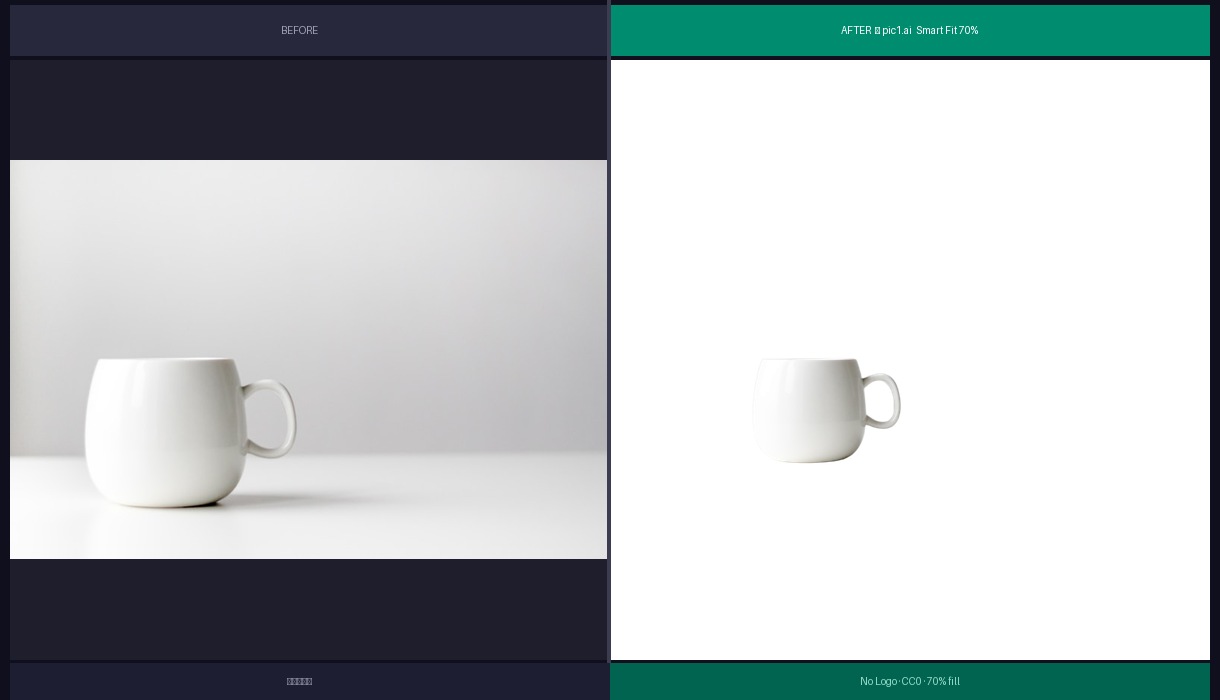
The nightmare scenario. White product, light gray background. Where does the mug end and the background begin?

Zoomed in, the rim has maybe a 1-pixel halo on the left side. At listing size you'd never see it. The handle cutout is clean — that's usually where white-on-white falls apart because the algorithm can't find the edge.

I've run this same test on remove.bg and Photoroom before. Both left a visible halo around the entire rim. This was noticeably better.

Verdict: Impressed. 9/10.

3. Throw Pillow

Throw Pillow — Before and After AI Background Removal

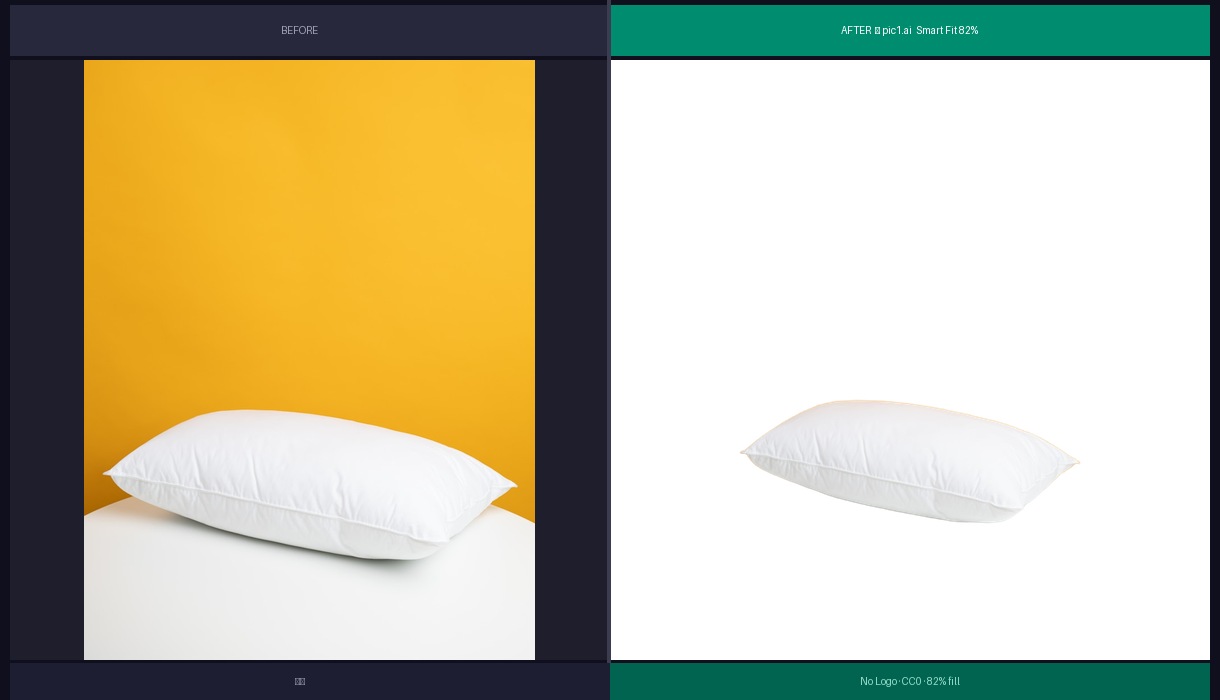
Textiles are weird because there's no hard edge. The pillow just... fades into fuzz at the borders. The AI has to decide where "pillow" ends and "background" begins, and there's no objectively correct answer.

It did fine on most of the perimeter. Bottom-left corner has a tiny bit of yellow bleed from the original background — maybe 3-4 pixels. I could fix that in 10 seconds but the point was no manual cleanup, so it stays.

Verdict: Usable with a minor caveat. 7/10.

4. Handmade Soap Bars

Handmade Soap Bars — Before and After AI Background Removal

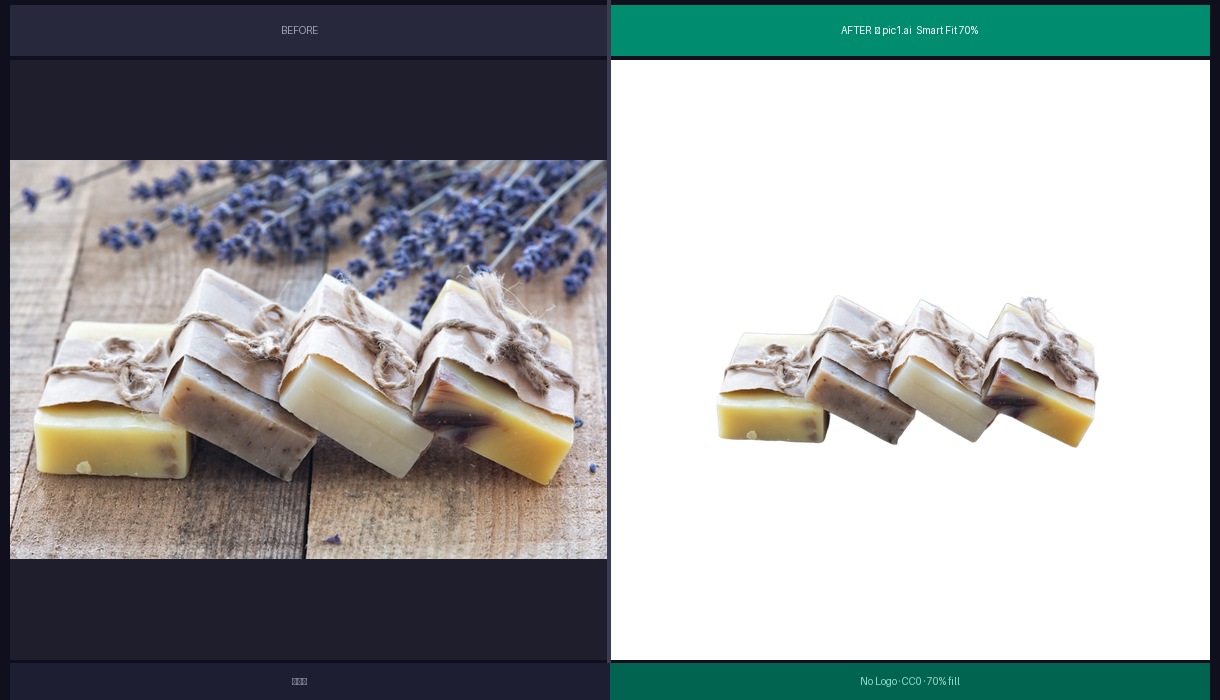
Three separate objects on a wooden surface. This is where I expected it to fail — the soap has rough-cut edges that are almost the same color as the cutting board underneath.

It got all three pieces. The rough texture on the sides came through without getting smoothed into mush. The gap between the soaps is clean. I genuinely didn't think this would work without manual intervention.

The one thing I'd flag: the bottom edge of the front soap bar looks slightly sharper than the original. Like the AI added a tiny bit of contrast to define the boundary. Not a dealbreaker but it's there.

Verdict: Best surprise of the batch. 9/10.

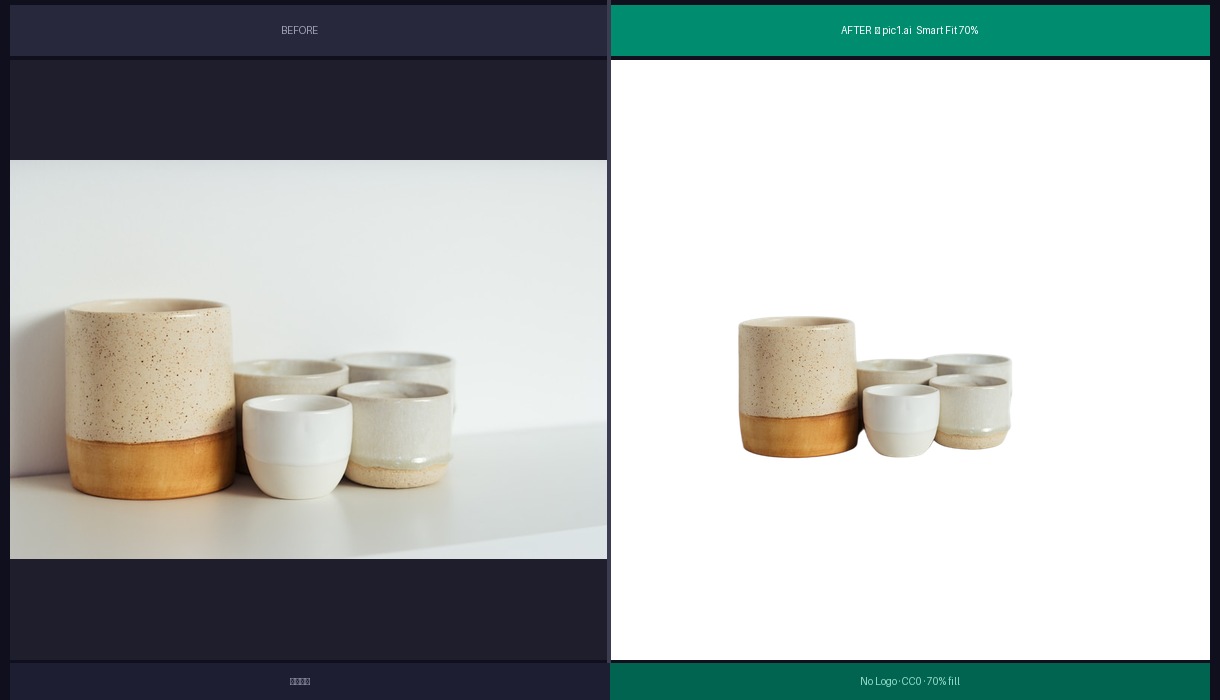
5. Ceramic Cup Set

Ceramic Cup Set — Before and After AI Background Removal

Glossy ceramics are a pain because they reflect their environment. Remove the background and sometimes you get weird color shifts on the reflective surfaces — the cup "remembers" the blue wall that's no longer there.

This set kept its warm tone. The interior shadow looks natural. The glaze reflection on the rim is intact.

I will say the saucer edge got slightly soft on the right side. Not clipped, just... less defined than the original. Might be the compression, might be the AI. Hard to tell.

Verdict: Solid. 8/10.

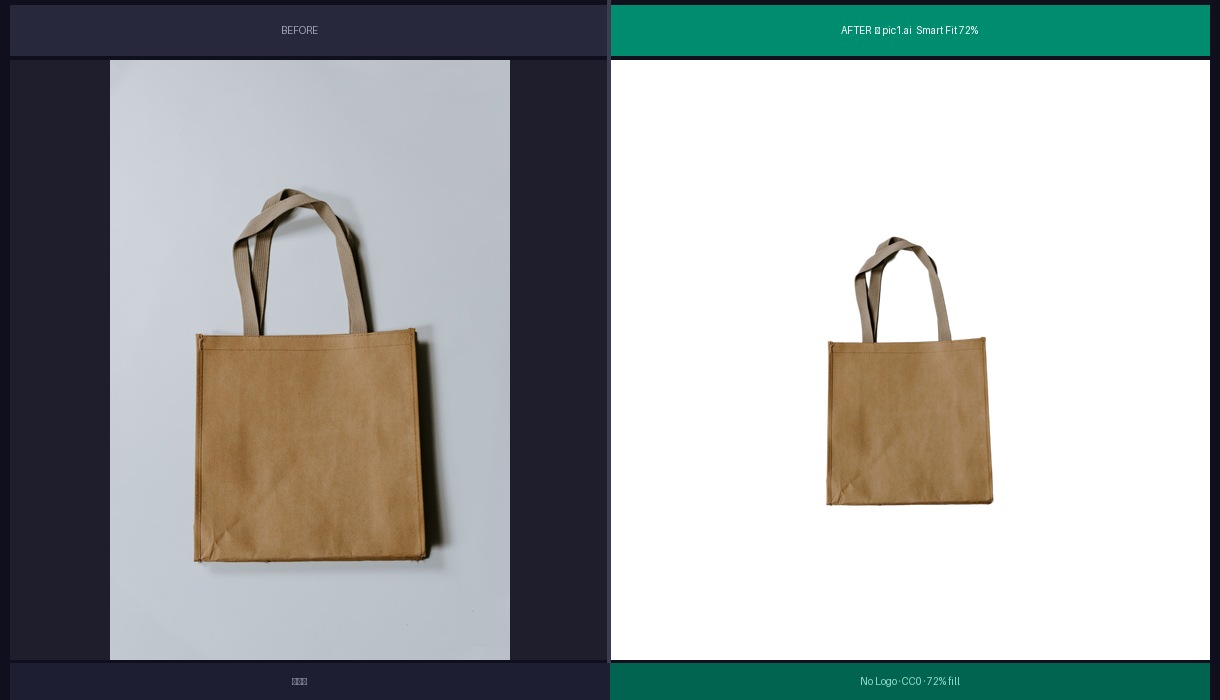
6. Canvas Tote Bag

Canvas Tote Bag — Before and After AI Background Removal

Bags look simple until you think about the handles. Two thin straps with a gap between them and the bag body. The AI has to cut out the background visible through that gap without eating into the straps.

The gap is clean here. Both straps are intact. The canvas texture reads well.

My only gripe: the bottom of the bag has a very slight soft edge where it sat on the surface. In the original you can see a crisp fold line; in the AI output it's a touch blurry. Probably lost some detail during the segmentation.

Verdict: Good enough for marketplace listings. 8/10.

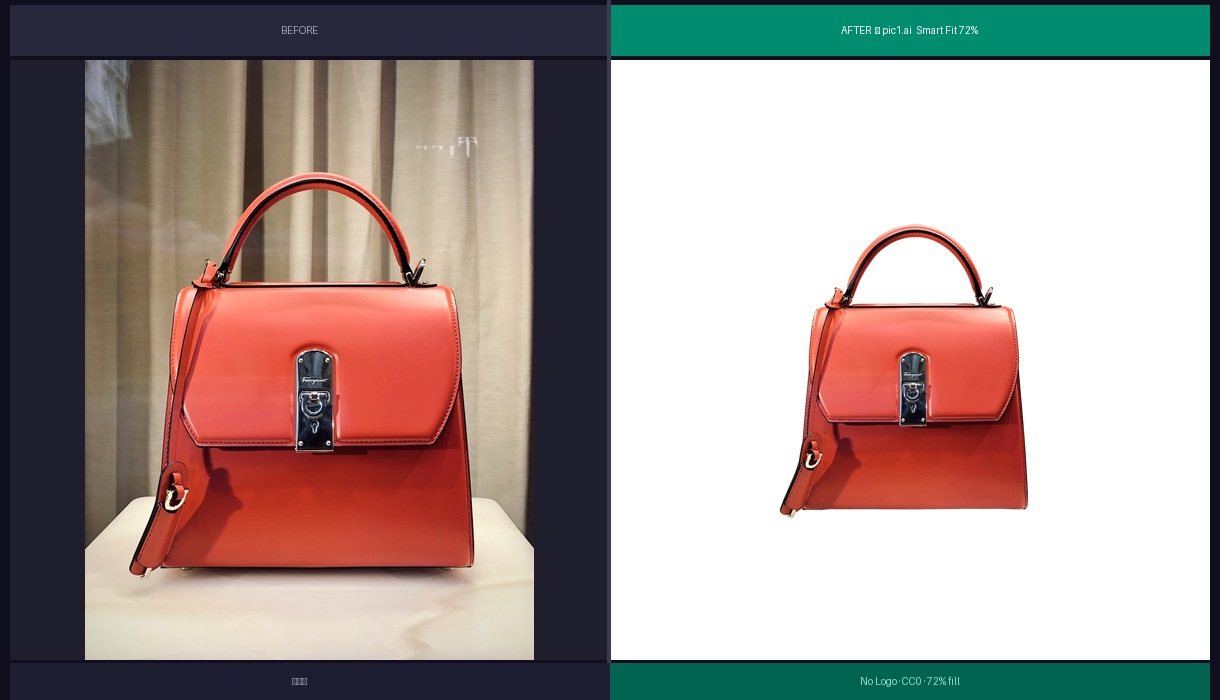
7. Leather Handbag

Leather Handbag — Before and After AI Background Removal

Structured leather with metal hardware — clasp, zipper pull, stitching. Lots of tiny high-contrast details.

The clasp came through clean. The stitching along the flap is still visible. The leather grain didn't get smoothed out, which happens sometimes when the AI over-processes edges near texture.

This is one where the smart centering really helped. The bag is taller than it is wide, so the algorithm gave it 72% fill instead of cramming it to 85%. Looks balanced.

Verdict: Would use without hesitation. 9/10.

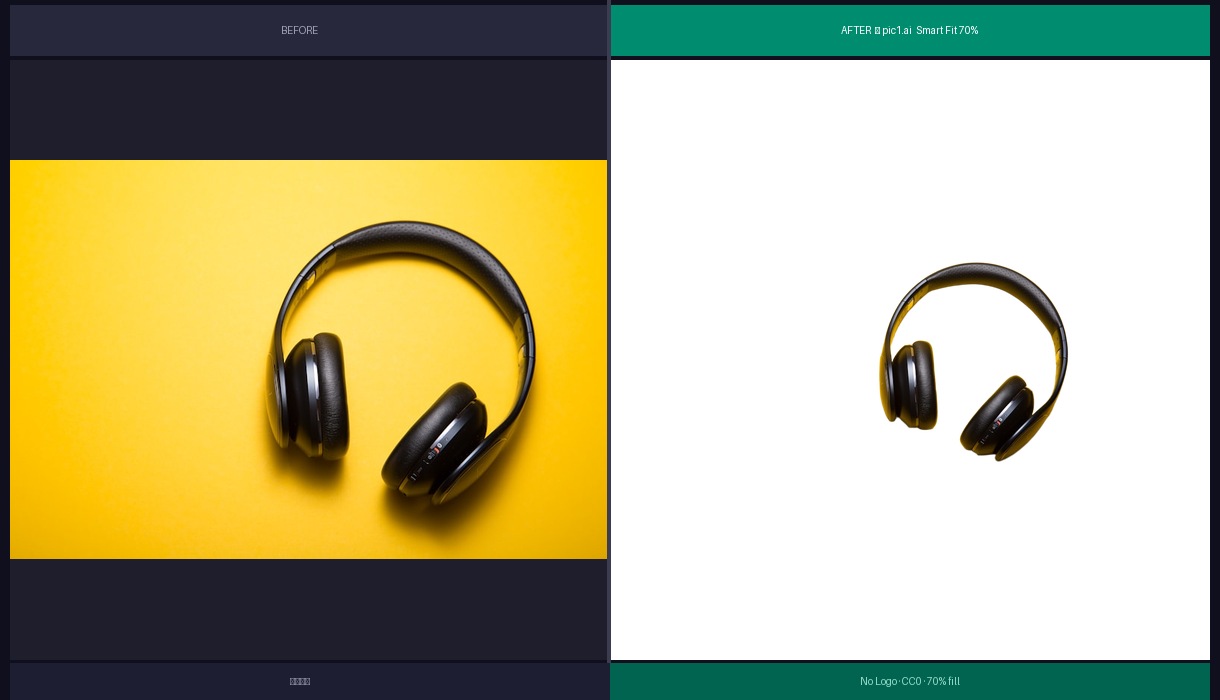
8. Wireless Headphones

Wireless Headphones — Before and After AI Background Removal

Matte black product on a colored background. The headband is a thin curved line — easy to clip accidentally.

Both ear cups are intact. The mesh texture on the cushions is still readable. The headband curve is smooth without any jagged artifacts.

I tested headphones on three other tools last year and two of them clipped the top of the headband. This one didn't. Progress.

Verdict: Clean. 9/10.

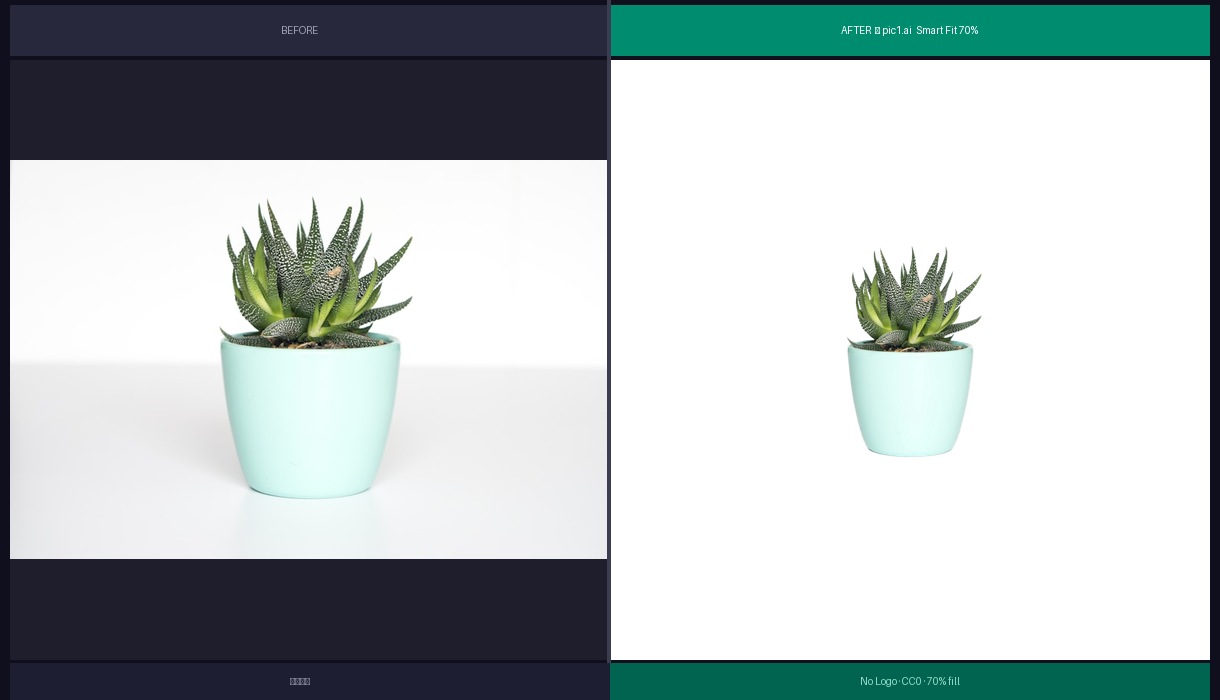
9. Succulent Plant

Succulent Plant — Before and After AI Background Removal

Organic shapes. Leaves going in every direction, some partially translucent at the tips. No straight lines anywhere.

The AI traced around each leaf individually instead of blobbing them together. A couple of the thinnest tips lost maybe a pixel of detail — you'd need to zoom past 200% to see it.

Plants are a growing category on Etsy and the quality bar for photos is lower than Amazon, so this would absolutely fly.

Verdict: Great for the category. 8/10.

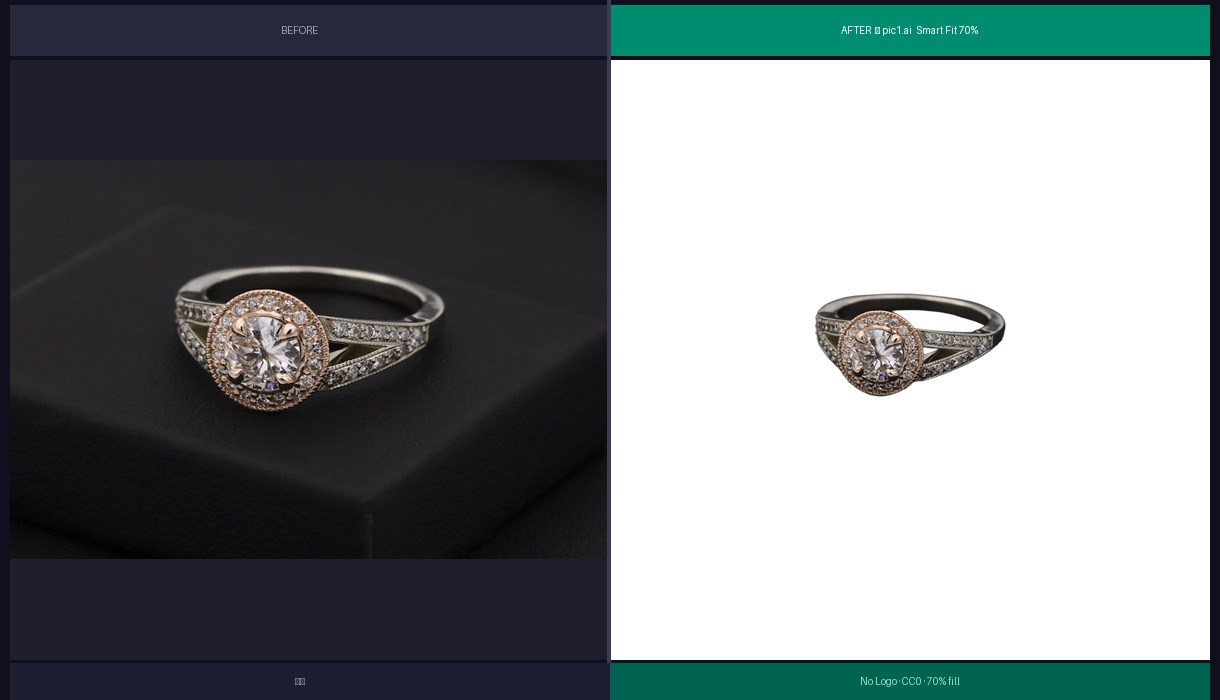
10. Diamond Ring

Diamond Ring — Before and After AI Background Removal

I saved the hardest for last. Reflective metal band, transparent stone with internal facets, tiny prongs holding the diamond. This is where retouchers earn their money.

The diamond facets stayed crisp. The band reflection didn't get clipped. The prongs are all there. At a retouching studio this would cost $5-8 per image because of the complexity.

It's not perfect — the reflection on the inside of the band has a slightly different quality than the original. But for a listing thumbnail? More than adequate.

Verdict: Surprisingly capable. 8/10.


The Honest Summary

Average score: 8.3/10 across all categories.

Three images I'd use without any changes (mug, soap, headphones). Five I'd use with maybe 30 seconds of touch-up (sofa, cup set, tote, handbag, ring). Two I'd want to spend a minute on (pillow, plant).

None were unusable. That's the headline.

What the AI handles well:

  • Hard edges on solid objects (ceramics, leather, metal)
  • Multiple objects in one frame
  • Automatic centering and sizing

Where it still struggles:

  • White-on-white (works but not flawless)
  • Fuzzy textile edges
  • Reflections on glossy/metallic surfaces
  • Very thin elements (straps, prongs, chains)

The money math, roughly: I used to pay a retoucher $3-4 per image. At 50 products with 5-7 shots each, that's somewhere around a thousand bucks every time I refresh my catalog. Now I run everything through AI first, and maybe 20% needs manual touch-up. The rest goes straight to listing. Saves me a few hundred per batch, and more importantly, saves me two days of waiting for the retoucher to deliver.

If you want to test it yourself, pic1.ai does free trials — upload something and see what comes back before you commit. I'd suggest starting with your hardest product, not your easiest. That's where you'll actually learn something about the tool.

Sarah Chen

Sarah Chen